
Conference Event Help Desk Planning for Poster Sessions
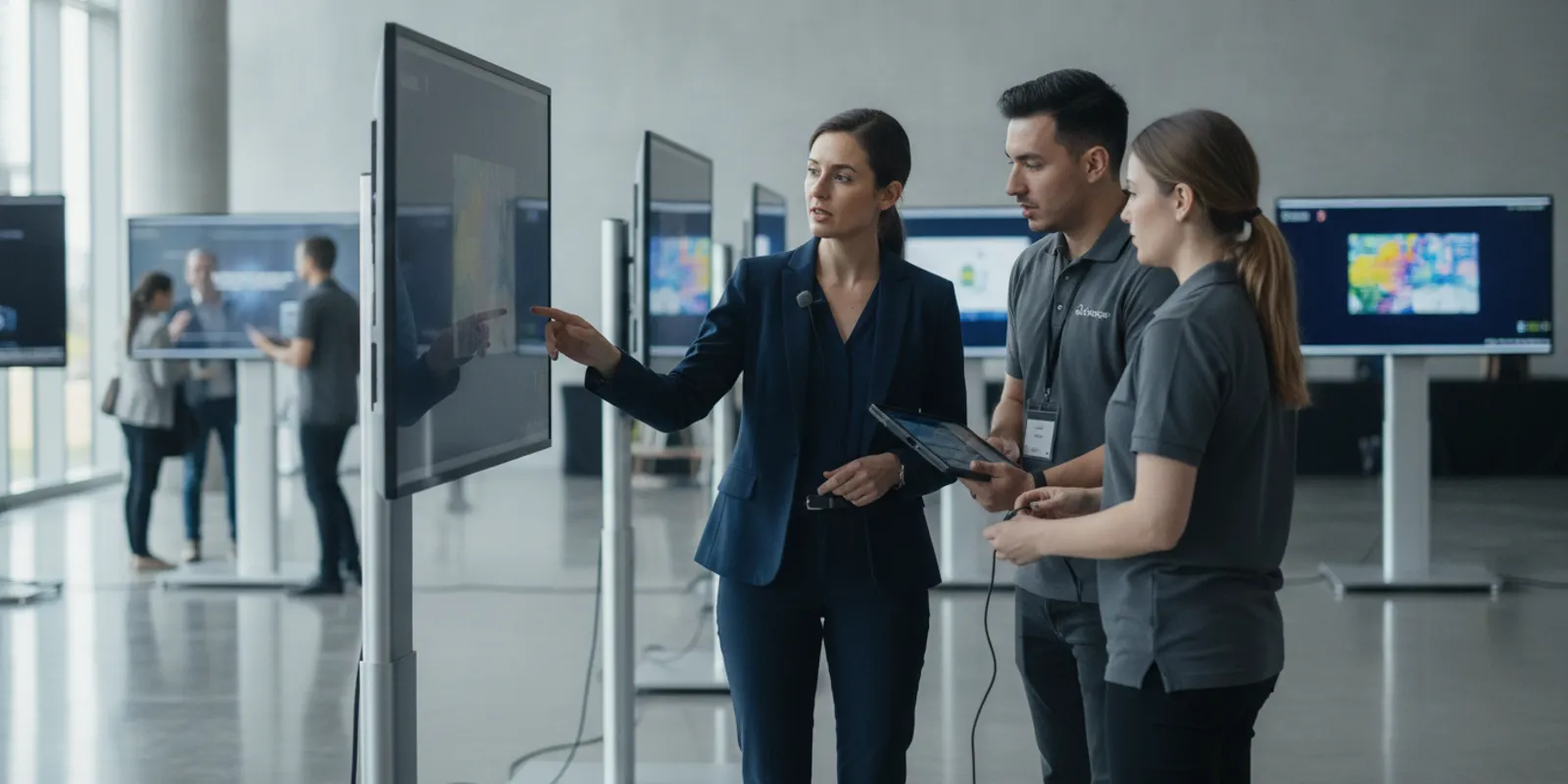
A conference event help desk gives presenters and attendees a clear place to turn when a digital poster session does not go as planned. For an organizer, it should be a planned support service with defined channels, prepared answers, assigned staff, an issue-routing process, and a clear boundary between what the team can solve and what must go to the organizer, venue, or internet provider.
Support begins before the first presenter arrives. The team may need to answer file questions, confirm presenter assignments, guide authors through displays, help attendees find a poster, and resolve problems with power, network access, touchscreens, kiosks, or session timing. A practical plan protects the schedule without making promises that the event team cannot keep.
Start with the purpose of the help desk
Write down what the help desk must accomplish. “Support the event” is too broad to guide a response when a presenter cannot find a file or an attendee reports a blank display. A useful purpose statement identifies the people supported, the spaces covered, and the intended outcome. For example: help presenters and attendees use the poster-session displays and related tools, resolve routine navigation and technical issues, and route unresolved matters to the correct event contact.
Separate the buyer from the people who use the service. The conference organizer scopes and purchases the planned program. Presenters and attendees use the session. Venue staff, event technology teams, and network contacts are operational partners. That distinction helps staff avoid treating every request as the same problem.
- Presenter support: Explain file rules, locate an assigned display, orient authors to the presentation interface, and route content or schedule questions.
- Attendee support: Help participants find a poster, navigate a gallery or kiosk, and report an unavailable screen.
- Organizer support: Share concise status on open issues, decisions needed, and potential program impacts.
- Venue coordination: Route room access, power, internet, furniture, loading, and building questions to the responsible contact.
Do not define the desk as unlimited technical coverage. State the dates, areas, hours, supported tools, and escalation limits. Setup and live sessions are different phases: setup allows inspection and testing, while live support prioritizes communication, safe workarounds, and minimal disruption.
Define audiences and channels
One help desk may serve several audiences, but not every audience should use the same channel. Presenters may need advance instructions and a submission contact. During setup, the organizer and venue may need a private operations channel. Attendees may need a visible help point close to the displays. For every audience, record what they need, when they are likely to ask, the right channel, and the response owner.
Presenter channel
Use a designated email address or organizer-managed form for advance questions. Keep this separate from an individual design request: help with event logistics is not the same as commissioning a poster to be created or reformatted. The organizer should identify which contact handles design work, event rules, and technical questions. On site, tell presenters where to check in, how to identify their poster, what to bring, and how to report a mismatch. If the session uses touch displays or kiosks, provide a short orientation.
Attendee channel
Attendees often need directions more than troubleshooting. Signs and concise instructions can explain how to browse, search, move between displays, and request help. The help desk should not be presented as a substitute for registration support, venue safety procedures, or accommodation planning. Route registration, certificates, lost property, food, room changes, and personal accommodation requests to the organizer’s designated contact.
Organizer and venue channel
The organizer needs a direct operational channel for matters that affect the program, such as a changed assignment, delayed session, content removal request, or decision about a replacement file. Venue matters may require a separate contact for power, internet, furniture, access, loading, or security. Make an escalation list by role—not simply “tell someone”—and give the list to every support worker.
Set scope before choosing staffing
Staffing should follow the actual session. Count displays, rooms, sessions, presenter arrival periods, support channels, and likely traffic before deciding coverage. A desk that seems sufficient during setup may be overwhelmed when presenters arrive together or several displays need changes at a session transition.
Document the factors that shape delivery:
- Number of displays, stands, kiosks, rooms, and distance between areas.
- Number of posters and whether they change between sessions.
- Presenter check-in windows, expected arrival patterns, and attendee opening times.
- Whether presenters use provided equipment or an approved own-computer configuration.
- Whether the program includes touch interaction, judging, multimedia, a searchable gallery, or a virtual component.
- Venue rules for power, internet, loading, storage, room access, and technical work.
- Who can approve content changes, exceptions, and schedule decisions.
These details make the service concrete. A planned, staffed poster-session program may include venue planning, presenter file preparation, display setup, help desk coverage, and on-site technical support. Abstract submission, electronic judging, virtual delivery, gallery hosting, and design assistance are optional components to scope separately. A proposal should distinguish what is included from what is an add-on.
Turn these factors into an operational scope sheet. Use one row per phase—advance preparation, load-in, presenter check-in, live session, transition, and breakdown. For each row, name the location, planned hours, responsible role, expected requests, tools available, and handoff contact. This makes hidden assumptions visible. For example, “help desk coverage” could mean a staffed table in one room during the session, or it could mean a mobile technician checking multiple rooms during setup. Those are different duties and should not be left under one vague label.
Also distinguish the service boundary from the service method. The boundary states which questions and equipment are covered. The method says whether a person comes to the desk, calls an event contact, uses a form, or flags a floor staffer. If an event includes a gallery or virtual component, state whether the on-site help desk handles it or routes it to a separate support owner. A single broad phrase can otherwise make attendees expect help with every event system.
Separate setup support from live-session support
During setup, the team can inspect equipment, load approved files, test displays, label locations, and correct issues before attendees arrive. During the live session, the priority shifts to keeping people moving, protecting the program schedule, and making careful changes without disrupting other presentations.
Setup support
Walk through the room and test each supported function. Confirm display locations, stand placement, cable paths, power access, network conditions, and the help point. Compare the poster list with the schedule and make sure staff can identify each display. For each kiosk, test the expected user journey: power up, open the intended menu, locate a sample poster, view permitted media, return to the main screen, and confirm it is ready for the next user. Test search paths if attendees will search by title, author, or number.
Keep a readiness log with location, issue, action, owner, and status. Classify a missing file as a content issue, a loose connection as an equipment issue, and an unavailable outlet as a venue issue. This keeps the next step clear and reduces dependence on memory.
Live-session support
Make the help point visible and decide which staff member stays there while another checks the floor. If one person leaves, arrange backup coverage. Use a simple priority rule: a one-person question with a quick workaround can be handled at the desk; a problem affecting a room, several displays, the schedule, or safety is escalated promptly. Staff should not make unapproved changes to published content.
Make the transition between phases explicit. Before doors open, the support lead can review unresolved readiness items and decide which are acceptable to open with, which need an immediate workaround, and which require the organizer to delay or change the session. Record the decision and owner. If an issue remains open, give desk staff a short explanation they can repeat without guessing about cause or timing.
During live coverage, keep a visible division of duties. A desk attendant can receive requests and maintain the log while a floor technician checks a display, but both should know who can approve a change. If only one worker is available, define what happens when that worker must leave the desk: a designated backup, a sign directing people to an alternate point, or a call path to the lead. Do not rely on an empty help table being self-explanatory.
Build a channel map and escalation path
A channel map turns contact details into a working process. For each channel, state its audience, purpose, operating period, owner, and escalation route.
| Channel | Best use | Owner | Escalate when |
|---|---|---|---|
| Pre-event email or form | File questions and presenter instructions | Organizer or support coordinator | A request changes content, deadlines, or scope |
| On-site help point | Check-in, directions, routine troubleshooting | Help desk staff | Several users or an essential display are affected |
| Staff operations channel | Internal updates during setup and sessions | Event or support lead | A decision, venue intervention, or schedule change is needed |
| Venue contact | Power, room access, furniture, loading | Organizer or venue lead | The issue exceeds event technology support |
| Program or content owner | Assignment, replacement file, removal, schedule | Organizer-designated owner | Approval or policy review is required |
Share the map with staff before the event. Put only audience-appropriate contacts on public signs. An internal operations number should not be printed for attendees, and a registration contact should not be labeled the technical escalation owner. State exactly when each channel is monitored. Do not imply 24/7 coverage or a response-time SLA unless it has been specifically planned and agreed.
Use a repeatable escalation sequence: identify the requester and location; classify issue type and impact; try the documented safe action; notify the named owner if it exceeds the worker’s role; record the decision or workaround; and update the organizer on open program-impacting issues. This avoids sending every small question to the event lead while preventing serious problems from sitting unattended.
Write down what happens when the primary contact is unavailable. Name a backup role, not just a person’s mobile number, and tell staff how to reach that role. The organizer can decide whether a deputy may approve content changes or only acknowledge them. Keep public-facing instructions narrower: attendees should be told where to ask for help, not shown an internal chain of command.
Use a compact status vocabulary that everyone understands: new, assigned, waiting for organizer, waiting for venue, workaround in place, verified resolved, or closed. “Resolved” should mean someone checked the result, not only that a technician attempted a fix. “Waiting” should identify the next owner and what information or action is needed. These labels are useful at handoff between setup crew and session staff.
Prepare FAQs that prevent avoidable requests
Write FAQs using the event’s actual equipment, deadlines, and workflow. Generic instructions can create more confusion if they conflict with the setup. Review each answer against the organizer’s final rules, then put the same version in presenter instructions, staff references, and any attendee-facing guide where relevant.
What should presenters bring?
State whether presenters need a final approved file, backup copy, identification, device, or another event-specific item. Explain what the event provides. If presenters may use their own computer, specify the approved connection and testing process; do not assume every device or adapter will work.
Where and when should presenters check in?
Give the location, opening period, late-arrival instructions, and method for confirming a display assignment. Keep the current schedule accessible to both presenters and help desk staff.
What if a file is missing or incorrect?
Tell presenters whom to contact and what to provide, such as title, author, presentation number, and requested correction. Explain whether the organizer must approve a replacement. Support staff should not promise a change before checking the event’s approval rules.
How do attendees find a poster?
Explain the search, menu, room, or display-number process in plain language. If a schedule or gallery is available, show where to begin. A short printed or digital guide can reduce repeated questions.
What if a screen is blank?
Ask the attendee to report the location or display number rather than pressing controls or unplugging equipment. Staff can log the issue, check whether it is isolated, and escalate safely. Do not ask an attendee to troubleshoot power or network connections.
Does the desk answer registration or venue questions?
Say which requests it handles and identify the correct contact for others. Clear routing is useful: the help desk should not claim authority over registration, venue services, or program decisions it does not own.
Keep FAQ answers short enough to use at a desk. A practical answer has three parts: the action the person should take, the information to include, and the next owner if the first route cannot resolve it. For instance, a file mismatch answer can tell an author to provide the poster number and correct file, explain that the program owner approves content changes, and state where the request will be reviewed. Avoid “we will fix it” when approval or testing is still needed.
Make a versioned FAQ rather than letting staff collect separate informal answers. Put an owner and revision date on the internal copy. When a rule changes, update the presenter message, staff sheet, and signs together. If a late schedule change affects only one room, note the affected session clearly so that an old printed guide does not continue to circulate as if current.
Write staff scripts and intake instructions
Staff do not need a long script, but they do need consistent language. A useful opening is: “Are you a presenter, attendee, organizer, or venue contact, and what is the poster number or location?” Then clarify the immediate need and choose the next step.
Prepare quick-reference cards for a missing display, file mismatch, navigation question, unresponsive screen, media problem, session change, room concern, and request that requires organizer approval. Each card should show the first action, information to collect, safe workaround if one exists, and escalation owner. For a blank display, for instance, staff can record the location, see whether other displays work, check a connection only if trained and authorized, and alert the support lead. They should not make electrical repairs outside their role.
Use calm, factual language. Instead of announcing “the system is down,” say, “I have recorded the issue at display 12 and am checking whether it affects that display only.” Do not guess at a cause or promise a completion time. If a decision belongs to the organizer, explain that the request has been routed for review.
Intake should capture enough detail to prevent a second interview, without collecting unnecessary personal information. For a display problem, record the location, poster number if known, time reported, visible behavior, whether nearby displays are working, and action already attempted. For a content correction, record the current and requested version, the submitter’s role, the applicable deadline, and the approving owner. Route personal accommodation or registration matters to the assigned organizer contact rather than writing sensitive details into a shared technical log.
Practice the scripts with a few realistic scenarios before event day. One staffer can play a presenter whose file name does not match the assignment; another can play an attendee who cannot find a poster; a third can report a room-wide display issue. The team should rehearse the first question, safe next step, handoff, and wording used to explain an unresolved request. A brief rehearsal can expose ambiguous ownership before the room is busy.
Create an issue log and triage system
Not every issue needs a lengthy ticket, but each needs enough detail for the next person to understand it. A paper log, shared operations sheet, or event-approved tool can capture the time, requester or role when appropriate, poster title or location, description, steps tried, owner, priority, status, workaround, and outcome.
Use impact-based labels:
- Routine: A question affecting one person that can wait for normal handling.
- Important: A problem affecting one presentation or display that needs a workaround or prompt review.
- Program-impacting: A problem affecting a room, several displays, a transition, or a required function.
- Organizer decision: A content, schedule, rights, or policy matter staff cannot approve.
Priorities describe impact, not the perceived importance of the person asking. A presenter, sponsor, faculty member, or attendee can report either a high-impact issue or a routine question. This keeps triage focused on the event’s operation.
At intake, distinguish technical problems from content, venue, and program issues. A technical worker may inspect a display, reload an approved file, or explain navigation. That does not authorize them to change a published author list, remove content, or alter the schedule. Likewise, a help desk should not imply that it controls venue internet or electrical service. Identify the provider and reporting path in advance, and document an approved offline option if one exists.
Use a simple four-question triage check: Who is affected? Where is it happening? What function is unavailable? Does the issue have a safe workaround? An isolated navigation question with an easy direction can be handled immediately. A display that is blank while adjacent displays work may be localized, but still needs a logged check. If every kiosk loses access at once, the support lead should treat it as a broader service issue and notify the organizer and relevant technical contact rather than sending staff to each unit independently.
Group related incidents. If three people report the same kiosk problem, link their reports to one parent issue while keeping the locations and times. This helps the lead see a pattern and avoids counting each symptom as a separate root problem. Conversely, do not assume two reports share a cause merely because they occur close together; note observations and let the responsible technical contact assess them.
Set a handoff rhythm appropriate to the event, without inventing a response guarantee. During setup, the lead might review the open list at agreed milestones such as equipment test completion and doors-open readiness. During a live session, the team can communicate urgent program-impacting items as they arise and review routine open issues at a planned check-in. The point is to give each open item an owner and next action, not to promise that every issue will be resolved within a fixed interval.
Close an issue with a concise record: what changed, who verified the result, whether the presenter or organizer was informed, and whether further follow-up remains. If no repair is possible during the session, close the immediate response only when the owner accepts the workaround and the follow-up is assigned. A clear record makes post-event review more useful and prevents the next shift from repeating tests blindly.
Plan presenter support before arrival
Many live requests begin with incomplete instructions. Send presenters one consolidated set of rules covering file preparation, naming, deadlines, media, display expectations, check-in, corrections, and support channels. If templates or design assistance are available, distinguish using a template, submitting a finished file, and requesting a separate design project.
Before the event, confirm the final poster count and schedule, names and assignments, approved file locations and versions, posters with video or other media, replacement-file approval steps, check-in instructions, and contacts for content, program, registration, and venue questions. Give the support team a controlled copy of the final list. Mark its date and owner, and define how last-minute changes are communicated. Avoid promising a fixed display size until the event’s current equipment is confirmed.
A useful presenter message should answer practical questions in the order an author encounters them. Start with what to submit and where; give the deadline and file naming method; explain whether media is permitted; identify how a presenter confirms the assigned display; then explain the check-in location and support route. Put exception handling in the same message. If a presenter misses a deadline, state whom to contact and explain that late changes may need organizer review, rather than implying that any file can be swapped at any time.
Make the final roster usable at the desk. Include a stable identifier such as poster number, session, title, presenter, assigned display, and current file status. Keep a process for updating the roster: the organizer’s approved change is recorded, the support lead receives the new version, and staff know when the replacement is loaded and checked. Avoid parallel untracked spreadsheets that can show conflicting assignments.
For authors who arrive with an unexpected file or device, staff should ask what the approved event workflow allows. They can explain the available route and collect details, but should not guarantee compatibility or make ad hoc changes to another presenter’s slot. If the event permits an own-computer configuration, confirm who tests it, what connection has been approved, and which contact handles device-specific trouble. If that option is not in scope, tell presenters before arrival so the desk is not forced to invent a workaround.
Prepare attendees for self-service
Put concise navigation instructions near the entry point or help desk. Depending on the setup, explain how to browse a menu, search for a poster, return to the starting screen, move between sessions, or ask for help. Signs should identify the poster-session area and help point without exposing private contacts or instructions requiring an unapproved account.
Ask the organizer to decide what alternatives are available for people who cannot or do not want to use a touchscreen or mobile interaction. That may include staff assistance or a printed schedule, if planned. Do not claim accessibility certification based only on digital displays or a staffed desk; describe only the support options the event has actually arranged and route accommodation requests to the right organizer contact.
Write attendee instructions around the actual path through the room. A short sign might direct visitors to choose a session, search or browse the list, select a poster, and return to the menu when finished. If posters are arranged by number, include where numbers appear. If a kiosk is shared, explain how to exit a poster and leave the display ready for the next person. These small details reduce repeated questions and help visitors avoid changing settings accidentally.
Use one consistent vocabulary across signs and staff language. If the system calls an area a “poster gallery,” do not label it “poster directory” on another sign unless those are genuinely separate places. Keep signs readable at a glance, with one instruction per line where possible. Do not overload them with troubleshooting steps; tell visitors how to find help, while staff retain operational instructions.
During a busy period, the desk can observe where attendees hesitate. If many visitors ask where to begin, the first screen or sign may be unclear. If they find a poster but cannot return to the list, the navigation explanation may need to be more prominent. Record recurring questions and adjust only through the agreed process so that a quick signage change does not contradict the organizer’s approved directions.
Coordinate with the venue and test the setup
Review room layout, access windows, loading, storage, furniture, outlets, cable paths, internet needs, and equipment-placement restrictions. Confirm who can authorize room changes and who must be present for access. Place the help point where it is visible but does not block entrances, poster viewing, emergency routes, or presenter movement. If displays span rooms, decide whether a central desk is practical or each area needs a local contact.
Testing should reflect what users will do, not merely whether equipment powers on. Run through the presenter and attendee journeys: open the poster, navigate back, search if supported, view permitted media, and return to the starting state. Record what was tested, when, by whom, and any unresolved risk. For each supported function, document a verified workaround. Do not present a backup display, network path, cable, or device as guaranteed unless it is confirmed in the event inventory.
Ask the venue and organizer to confirm the operational facts that the support team cannot assume. What time can the crew enter? Which doors are used for loading? Are there restrictions on stand placement or cable routes? Who can provide access to the room if a staff member is delayed? Which network is intended for the displays, and who is the venue contact for connectivity issues? Record answers with the responsible contact and the date confirmed, then share the relevant parts with the team.
Build a room walk-through that follows a person’s route rather than a list of equipment alone. Start at the entrance, locate the session information, follow the signs to each display zone, find the help point, and check the path between zones. Ask whether a presenter can identify their assigned location without being escorted, and whether an attendee can move between areas without crossing blocked aisles. If a room layout changes, repeat the walkthrough and update instructions, rather than relying on an old floor plan.
During testing, distinguish observed facts from assumptions. “The screen opened the assigned poster at 3:15” is an observation. “The network will stay available all day” is not established by one successful test. Note what was checked and which provider owns unresolved dependencies. If a function depends on venue internet, identify that dependency to the organizer and agree on how the desk will report a failure. This creates a realistic operating plan without overstating what a single technician can control.
Run a readiness review before doors open
After equipment is in place and the final content list is available, review the full plan before presenters and attendees depend on it. Confirm the help point is visible and staffed for the planned period; staff know each channel and escalation owner; display numbers match the schedule; navigation paths have been tested; power, internet, and room access are confirmed; quick-reference instructions are available; public and internal contacts are separated; and the organizer has approved rules for late files and content changes.
Close the review with a list of accepted risks, owners, and next checks rather than declaring everything perfect. That gives the team a useful starting point if an issue appears during the session.
Walk the readiness review in a fixed order. First check people: who is on duty, where they are, and who covers breaks. Next check information: the current schedule, roster, contact map, FAQ, and escalation list. Then check the physical setup: help point, signage, display positions, safe routes, and access. Finally run the key user tasks on the actual equipment and review every unresolved item with the organizer. This sequence catches both technical and human gaps.
For each open item, choose one of three outcomes: resolve it before opening; accept it with a documented workaround and named owner; or ask the organizer to decide whether the session should change. Examples include a missing poster that requires approval, a kiosk menu that is confusing but has a staff-assisted route, or an unavailable room that changes the planned layout. Record the decision and ensure the public-facing directions match it.
Do not treat a checklist as a substitute for judgment. If a test reveals a safety concern, blocked route, or widespread failure, follow the venue’s and organizer’s procedures. A desk worker should not decide alone to move heavy equipment, change room access, or announce a schedule change. The checklist helps identify the decision-maker; it does not transfer authority to the person holding the clipboard.
Manage the desk during live sessions
At opening, confirm who covers the desk, who checks the floor, and who is available for escalation. Keep the current schedule, contact list, issue log, and instructions within reach. For each request, welcome the person, identify their role and location, clarify what they expected and what happened, classify impact, provide a documented answer or safe workaround, escalate beyond your authority, record status, and explain the next step.
At transitions, use a checklist rather than memory. Confirm which posters or files should change, which displays should return to a menu, and whether the organizer has approved the next schedule. Record anything that did not change as expected. If a problem is still under investigation, say so plainly; do not announce that it is fixed until it has been tested.
Use the desk as an information point, not just a repair station. A visitor may have a navigation question, while a presenter may need to confirm a location or route a correction. Ask one clarifying question before acting: “Which poster or display are you looking for?” or “Is the issue happening on one screen or more than one?” That short exchange helps distinguish a direction request from a broader incident.
When several requests arrive together, make a visible queueing decision. Handle immediate directions quickly if they do not interrupt another response; log and assign technical issues; escalate a program-impacting matter; and tell waiting people what the next step is without promising a completion time. If a presenter is waiting while a display is being checked, note their poster identifier and provide a way to find them again. Do not let a spoken request disappear when the desk becomes busy.
At a session transition, verify the change against the approved schedule. The person responsible can confirm which content should appear, record a mismatch, and check the new state before telling presenters it is ready. If the schedule has changed, use the organizer’s current instruction, not an old printed copy. Keep the previous version marked as superseded if it remains in the room so staff do not mistake it for current guidance.
Close each interaction with a plain next step: “The organizer is reviewing the replacement file,” “The venue contact has been notified about the outlet,” or “The display has been tested with the assigned poster.” This is more useful than a vague assurance. If the issue remains open, say who owns it and how the person should follow up within the event’s stated channel.
Review issues after the session
Before staff leave, review open issues with the organizer or support lead. Identify unresolved content requests, missing files, equipment concerns, attendee follow-up, or venue matters. Assign each next action and contact owner. Separate feedback about unclear instructions from technical incident records: both are useful, but they call for different follow-up. Note whether the issue suggests a change to the FAQ, staffing, room map, file process, or equipment test.
If a gallery or other post-event service is in scope, confirm its hosting period, access rules, content owner, and support route separately. A post-event gallery is not the same as a live virtual conference, and the help desk plan should identify the appropriate contact after the on-site session.
A short closeout review can follow the issue log from top to bottom. For each item, ask whether it is resolved and verified, whether the organizer needs to approve a remaining action, whether an attendee or presenter expects follow-up, and whether the incident exposed a gap in instructions or scope. Assign a role and due point for each continuing action; do not leave notes such as “check later” without an owner.
Keep the review factual. Record that a display was unavailable for a period, that staff used an agreed alternate route, or that the venue contact was notified. Avoid turning an incident record into an unsupported judgment about a person, vendor, or venue. If the issue involved a policy decision, record who made the decision and what direction staff followed. This helps the next event begin with a clear operational record.
Feed lessons into the next planning cycle. Repeated questions about file naming may call for a clearer presenter instruction; repeated requests for room directions may indicate signage should be revised; a slow handoff may mean the escalation list needs a backup owner. Change the plan based on observed events and organizer decisions, not assumptions about what users must have intended.
Ask for the right scope in an RFP
When requesting an RFP, provide event dates, venue, rooms, poster count, schedule, display approach, presenter workflow, attendee experience, and setup and breakdown periods. Ask which activities are included; how files are submitted and corrected; where the help point will be; which channels are monitored in each phase; how technical, content, program, and venue issues are routed; what staff record; which optional services are required; what venue details must be confirmed; and which organizer decisions are needed before the event.
On-site hardware and service pricing is quote-only. Ask for a scoped proposal rather than assuming a per-screen or per-staff rate. The proposal should distinguish physical equipment, staffing, content services, optional workflows, and venue-dependent requirements. Virtual package prices must not be treated as prices for a physical installation. Plan as early as practical; about two months is a useful planning window for a virtual configuration described by the provider, while bookings inside six weeks may carry an unspecified rush charge. Ask about timing rather than assuming late planning has no effect.
For more planning context, see the conference program planning checklist and the poster-session planning resources.
Use the RFP to make coverage measurable without demanding an unsupported guarantee. Ask the provider to describe the planned operating window, staff roles, setup and breakdown responsibilities, supported equipment, escalation contact, and how unresolved issues will be communicated. Ask what information the organizer must supply and by when, including the schedule, final poster count, venue contacts, content approvals, and room access details.
Request clarity about exclusions as well as inclusions. If abstract submission, electronic judging, virtual delivery, gallery hosting, or individual poster design is needed, name each separately and ask whether it is part of the proposed scope. A proposal should not leave the organizer to infer that a help desk includes all adjacent event services. Likewise, ask how the team will handle a request outside scope, so staff have a useful route rather than an improvised answer.
Compare proposals by the work they describe, not just by a headline label. One plan may include a staffed help point during live hours; another may include equipment setup but no participant-facing desk. One may include presenter file checks; another may require the organizer to deliver approved files in a specified state. Ask for the responsibilities, dependencies, and owner for each phase. Since onsite pricing is quote-only, use the event details to request comparable scopes rather than inventing a per-unit budget.
For an organizer preparing the inquiry, a concise packet can include: dates and venue; room layout or preliminary floor plan; estimated poster and session count; planned interaction such as touch navigation or multimedia; file status and submission workflow; presenter arrival pattern; anticipated help hours; venue power and network contacts; and the decisions the organizer retains. Mark estimates as estimates and note when final information will be available. This allows the service provider to identify questions without treating provisional counts as confirmed requirements.
Frequently asked questions
What is a conference event help desk for a digital poster session?
It is a planned support point and process for presenter, attendee, organizer, and venue questions related to the poster session. The agreed scope can cover instructions, navigation, routine technical troubleshooting, issue logging, and escalation.
Should presenters and attendees use the same channel?
Not necessarily. A visible on-site desk may serve both, while presenters may need an advance contact and organizers may need a private operations channel. Separate routes protect internal contacts and help each question reach the right owner.
Who decides whether a replacement poster can be loaded?
The event’s designated content or program owner should decide when a change affects approved content, author information, schedule, or event rules. Support staff can collect and route the request but should not approve it without authority.
Does a help desk include abstract submission or electronic judging?
Not automatically. Abstract workflows, judging, virtual delivery, and gallery hosting are optional services to scope separately. List each required service rather than assuming routine on-site support includes it.
Can an event promise continuous coverage?
Only if coverage has been specifically planned, staffed, and agreed. State operating hours and the after-hours route clearly; do not imply 24/7 availability or a response-time SLA unless confirmed.
Contact us about your poster session
A well-scoped conference event help desk gives participants a clear path to assistance while keeping decisions, communication, and escalation in the organizer’s hands.